# OpenCode Configuration
{/* feishu-style:text-align:left */}
**Pay-as-you-go MiMo API** and **Token Plan** both support OpenCode. Refer to this guide for configuration and usage.
## Prerequisites
### Obtain Credentials
{/* feishu-style:text-align:left */}
Supports two usage methods, but the corresponding credential acquisition methods are different:
| Usage Method |
Description |
Acquisition Method (BASE_URL and API Key below are examples) |
| Pay-as-you-go MiMo API |
Charged based on actual usage, suitable for light use |
- BASE_URL
- OpenAI Compatibility Protocol: `https://api.xiaomimimo.com/v1`
- API Key
Go to [API Keys](https://platform.xiaomimimo.com/#/console/api-keys) to create an API Key |
| Token Plan |
Fixed subscription fee, with limited calls based on the package |
- BASE_URL
- OpenAI Compatibility Protocol: `https://token-plan-cn.xiaomimimo.com/v1`
- API Key
- Format (Individual): `tp-xxxxx`
- Format (Team): `ttp-xxxxx`
After successful subscription, go to [Token Plan](https://platform.xiaomimimo.com/#/console/plan-manage) to obtain the exclusive Base URL and API Key |
When OpenCode uses MiMo under the Anthropic protocol, since the assistant containing tool calls is missing `reasoning_content`, the API will return a 400 error. For details, see [Multi-turn Conversation Pass-through Requirements](https://mimo.mi.com/docs/en-US/quick-start/usage-guide/text-generation/deep-thinking#:~:text=.-,Multi%2Dturn%20Conversation%20Pass%2Dthrough%20Requirements,-When%20deep%20thinking).
## Use OpenCode CLI
### Install OpenCode CLI
{/* feishu-style:text-align:left */}
OpenCode supports two installation methods.
{/* feishu-style:text-align:left */}
**Method 1: Official Script Installation (for macOS/Linux)**
```bash
curl -fsSL https://opencode.ai/install | bash
```
{/* feishu-style:text-align:left */}
**Method 2: npm Installation**
{/* feishu-style:text-align:left */}
Node.js 18 or later is required.
```bash
npm install -g opencode-ai
```
{/* feishu-style:text-align:left */}
**Verify installation (if a version number is displayed, the installation was successful):**
```bash
opencode -v
```
### Configure Basic Settings
{/* feishu-style:text-align:left */}
Edit or create the `opencode.json` configuration file at the following path:
- **macOS/Linux**: `~/.config/opencode/opencode.json`
- **Windows**: `User Directory\.config\opencode\opencode.json`
{/* feishu-style:text-align:left */}
Copy the following content into the configuration file (replace `BASE_URL` and `MIMO_API_KEY` as needed):
```json
{
"$schema": "https://opencode.ai/config.json",
"provider": {
"mimo": {
"npm": "@ai-sdk/openai-compatible",
"name": "MiMo",
"options": {
"baseURL": "BASE_URL",
"apiKey": "MIMO_API_KEY"
},
"models": {
"mimo-v2.6-pro": {
"name": "mimo-v2.6-pro",
"limit": {
"context": 1048576,
"output": 131072
},
"modalities": {
"input": [
"text", "image"
],
"output": [
"text"
]
}
},
"mimo-v2.6-flash": {
"name": "mimo-v2.6-flash",
"limit": {
"context": 1048576,
"output": 131072
},
"modalities": {
"input": [
"text", "image"
],
"output": [
"text"
]
}
}
}
}
}
}
```
If you need to enable the image understanding capability, you need to modify or add the following configuration items under the configuration node of the model that supports this capability (e.g., `mimo-v2.6-pro`). That is, add `image` to the supported input modalities: `"modalities": {"input": ["text", "image"], "output": ["text"]}`
### Use OpenCode CLI
{/* feishu-style:text-align:left */}
After completing the configuration, navigate to the project directory and run the following command to start OpenCode:
```bash
opencode
```
{/* feishu-style:text-align:left */}
After starting, enter `/models` to view and switch between available models.
## Use OpenCode IDE Plugin
### Install Plugin
{/* feishu-style:text-align:left */}
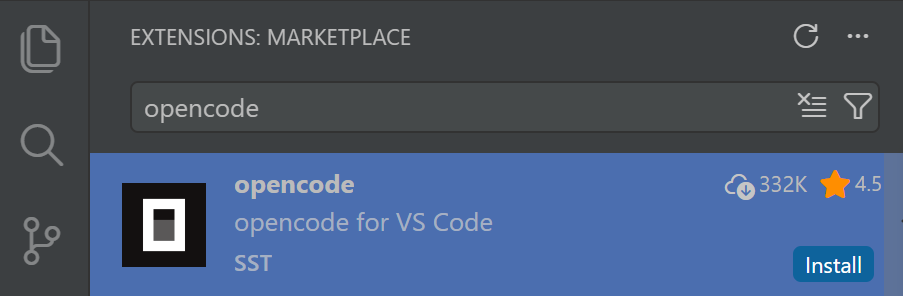
Search for and install the **opencode** plugin in the VS Code Extensions marketplace.
 ### Configure a Predefined Provider (Recommended)
{/* feishu-style:text-align:left */}
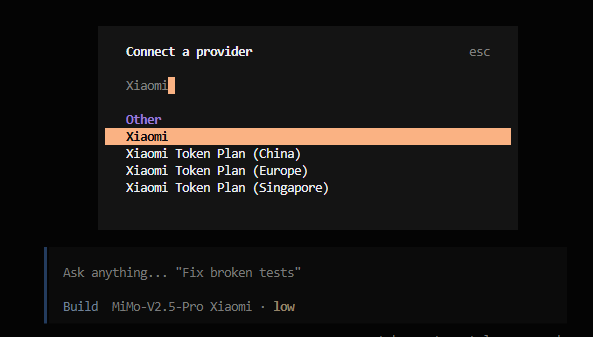
Just enter `/connect` in the input box, search for `Xiaomi`, select the corresponding Provider, and fill in the API Key.
### Configure a Predefined Provider (Recommended)
{/* feishu-style:text-align:left */}
Just enter `/connect` in the input box, search for `Xiaomi`, select the corresponding Provider, and fill in the API Key.
When using the **Xiaomi Token Plan**, you need to select the Provider corresponding to the Base URL displayed on the [Token Plan](https://platform.xiaomimimo.com/#/console/plan-manage) page.
- `https://token-plan-cn.xiaomimimo.com/*`: Xiaomi Token Plan (China)
- `https://token-plan-sgp.xiaomimimo.com/*`: Xiaomi Token Plan (Singapore)
- `https://token-plan-ams.xiaomimimo.com/*`: Xiaomi Token Plan (Europe)
 ### Configure a Custom Provider
{/* feishu-style:text-align:left */}
Refer to the "Configure Basic Settings" steps in the OpenCode CLI section above.
### Use OpenCode Plugin
### Configure a Custom Provider
{/* feishu-style:text-align:left */}
Refer to the "Configure Basic Settings" steps in the OpenCode CLI section above.
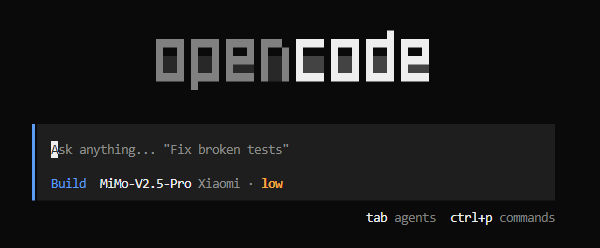
### Use OpenCode Plugin
 ## FAQ
### When verifying the installation on Windows, I encounter the following error. How to fix it?
> It seems that your package manager failed to install the right version of the opencode CLI for your platform. You can try manually installing "opencode-windows-x64" or "opencode-windows-x64-baseline" package
{/* feishu-style:text-align:left */}
Run the command `npm install -g opencode-windows-x64` as prompted to resolve the issue.
### Error when starting OpenCode in VS Code on Windows?
> opencode : Cannot load file ... because running scripts is disabled on this system
{/* feishu-style:text-align:left */}
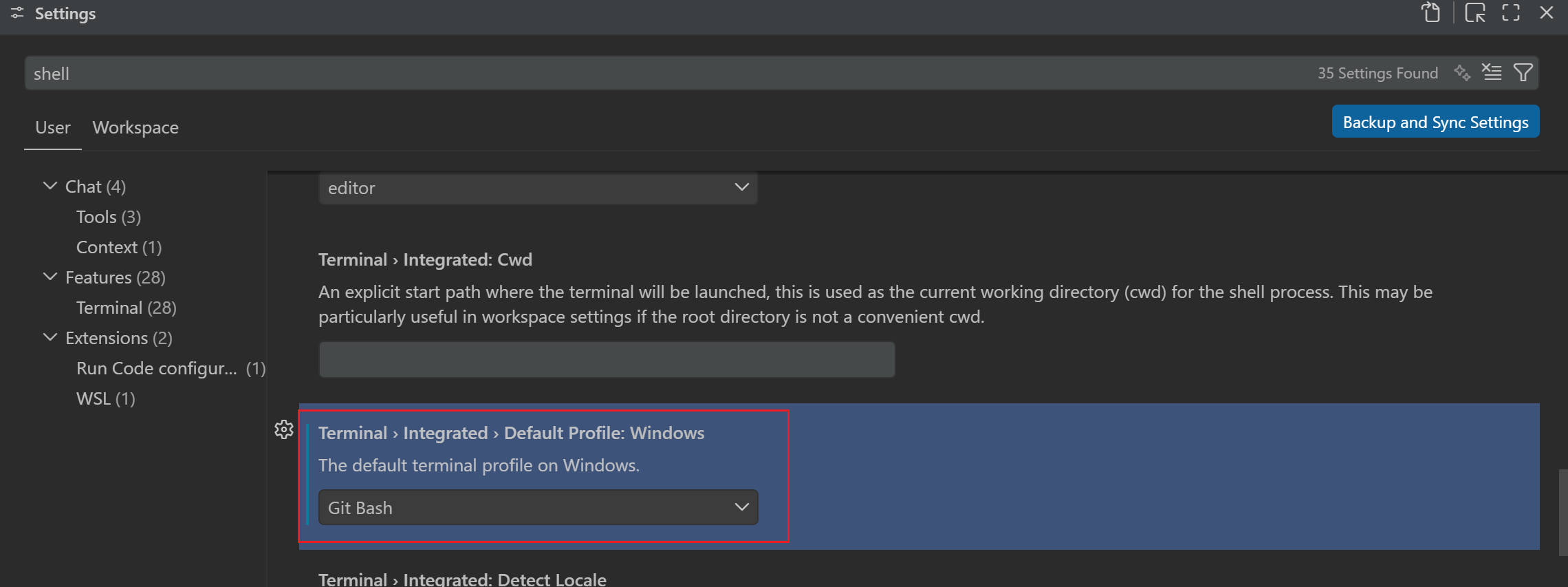
Change the default terminal type to Git Bash when opening a terminal in VS Code.
## FAQ
### When verifying the installation on Windows, I encounter the following error. How to fix it?
> It seems that your package manager failed to install the right version of the opencode CLI for your platform. You can try manually installing "opencode-windows-x64" or "opencode-windows-x64-baseline" package
{/* feishu-style:text-align:left */}
Run the command `npm install -g opencode-windows-x64` as prompted to resolve the issue.
### Error when starting OpenCode in VS Code on Windows?
> opencode : Cannot load file ... because running scripts is disabled on this system
{/* feishu-style:text-align:left */}
Change the default terminal type to Git Bash when opening a terminal in VS Code.